
Darryn
Working with @Zebra technologies' developer community. Former contributor to @rhomobile
Enterprise Keyboard and the Enterprise Keyboard Designer
Published Jan 03, 2020
Enterprise Keyboard and the Enterprise Keyboard Designer
Enterprise Keyboard (EKB) and the recently released Enterprise Keyboard Designer (EKD) can be used together to create custom keyboards for specific Enterprise use cases such as Function key input or custom symbol key input without making the user navigate around a myriad of symbol screens. You design your custom layout(s) with the Enterprise Keyboard Designer which are then rendered by the Enterprise Keyboard, a replacement keyboard you use instead of Gboard. Some sample layouts are shown below and a lot more detail is given on the techdocs pages for both EKB and the designer.
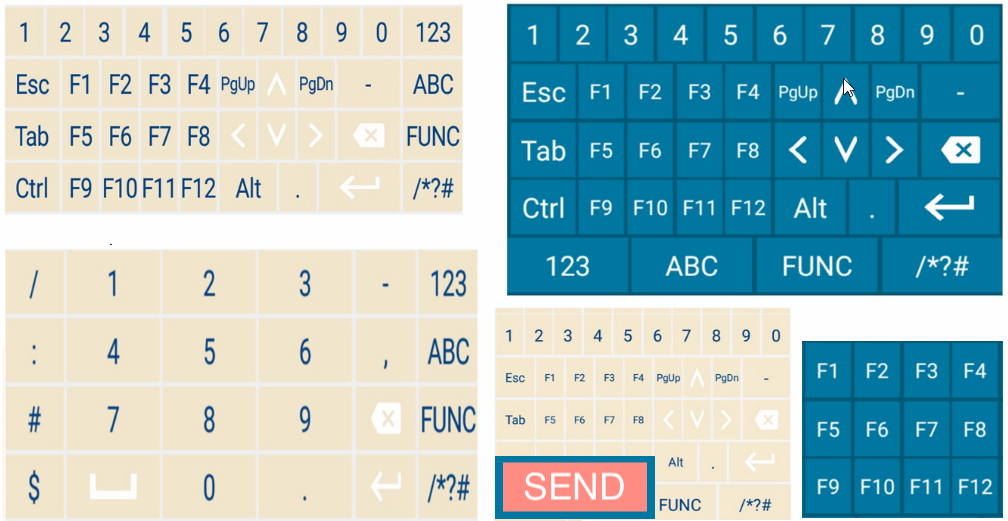
As stated in Techdocs, EKB is not intended as a general-purpose replacement keyboard and should only be used when a custom keyboard layout or layouts are required.
Using an EKB Layout within your application - Prerequisites
Having designed your layout(s) in the designer tool you want to be able to use these layout(s) within your application. There are some pre-requisites before doing so:
- The layout(s) have been designed in the designer tool and a <filename>.encrypted file has been exported from the tool
- Note that the design process itself can be a large undertaking but for the purposes of this discussion I will assume all the layouts have already been created.
- I would recommend sticking to the ‘grid layout’ system when hosting multiple custom layouts within a group.
- The designer tool is available for download from the support portal
- The <filename>.encrypted file has been deployed to the device in the following directory: /enterprise/device/settings/ekb/config/.
- Enterprise Keyboard version 3.2 or higher is present on the device. This is a downloadable apk file available from the support portal.
- Enterprise Keyboard is set to the default IME.
- You can do this manually through the Android “Languages & Input” settings
- Or you can set the default IME using StageNow. Specify InputMethodPackageName as com.symbol.mxmf.csp.enterprisekeyboard and InputMethodClassName as com.android.inputmethod.latin.LatinIME
- Your device is running DataWedge 7.4.44. This is required to switch Enterprise Keyboard layouts using DataWedge but is not required to use the EKB API
- At the time of writing, version 7.4.44 is the latest version of DataWedge available. DataWedge is updated by deploying a newer OS update or LifeGuard patch.
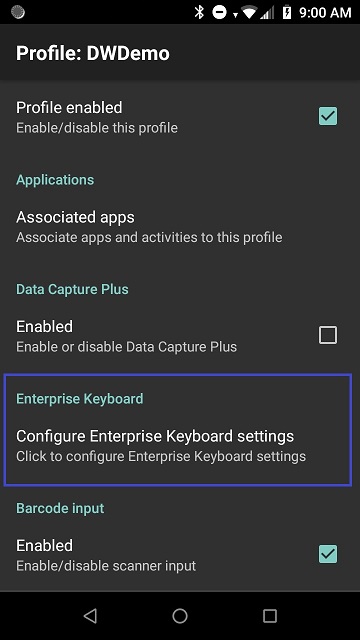
Having all those prerequisites in place you should see the “Configure Enterprise Keyboard settings” available in DataWedge 7.4.44. If you do not have this option or the option is greyed out, then you are missing one or more of the prerequisite steps.
The Enterprise Keyboard API
The Enterprise Keyboard offers an Intent-based API and is thoroughly documented on techdocs.
APIs are available as follows:
- Enable / Disable Enterprise Keyboard, preventing the keyboard from showing.
- Retrieve the current layout or the list of all available layouts. These are the custom layouts you designed with the EKB designer tool.
- Set a specific layout from the list of custom layouts.
- Show or Hide Enterprise Keyboard
- Reset EKB and return to the default (non-custom) layout. The EKB Intent API works slightly differently from the DataWedge API; with the EKB API there are multiple actions in the form com.symbol.ekb.api.ACTION_<GET / SET / DO> and responses are received via Pending Intents. Using Pending Intents gives greater flexibility to developers as well as assurances that only the original sender can receive the response.
For example, the code to set a particular layout within a defined group looks as follows:
Intent intent = new Intent();
intent.setAction(com.symbol.ekb.api.ACTION_UPDATE);
intent.setPackage(com.symbol.mxmf.csp.enterprisekeyboard);
intent.addFlags(Intent.FLAG_RECEIVER_FOREGROUND);
intent.putExtra("CURRENT_LAYOUT_GROUP", GROUP_NAME);
intent.putExtra("CURRENT_LAYOUT_NAME", LAYOUT_NAME);
PendingIntent piResponse = PendingIntent.getActivity(getApplicationContext(), 1,
        new Intent(this, MainActivity.class), PendingIntent.FLAG_ONE_SHOT);
intent.putExtra("CALLBACK_RESPONSE", piResponse);
sendBroadcast(intent);
The response to this call will be sent to the calling activity via startActivity() since PendingIntent.getActivity was used; a developer could equally choose to receive the response as a broadcast or a startService.
Demo application for the EKB API
I have put together a sample application that demonstrates the EKB API which is available from my GitHub: https://github.com/darryncampbell/Enterprise_Keyboard_Exerciser
Before using the demo application, you must deploy the provided Test001.encrypted file to /enterprise/device/settings/ekb/config/ which is easily achieved via adb:
adb push Test001.encrypted /enterprise/device/settings/ekb/config/Test001.encrypted
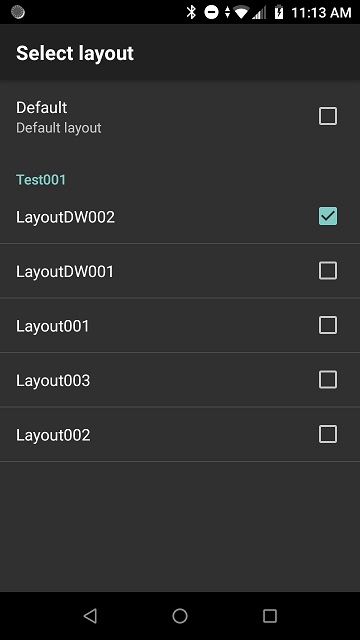
Test001.encrypted contains a set of 5 pre-defined layouts quickly knocked together for demo purposes only. After deployment, provided you are running DataWedge 7.4.44 or higher you should see something like the below in the Enterprise Keyboard Layout configuration
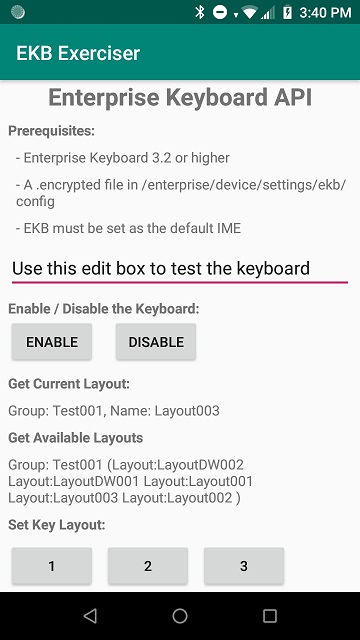
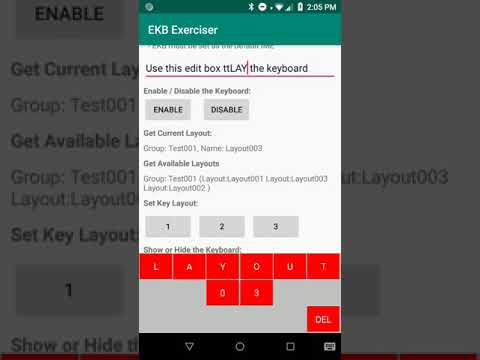
With all prerequisites in place you can now run the demo application. You can use the buttons on the first activity to exercise the different APIs and you should see something like the following screenshots (obtained from a TC57):
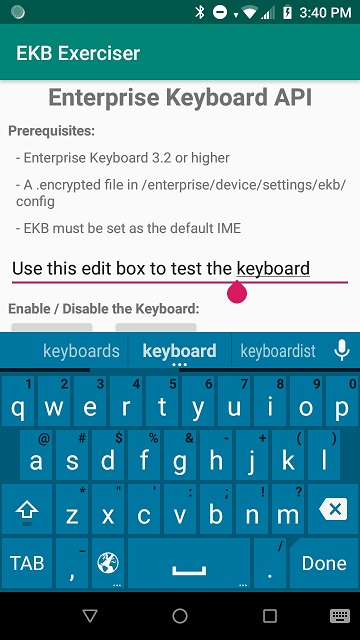
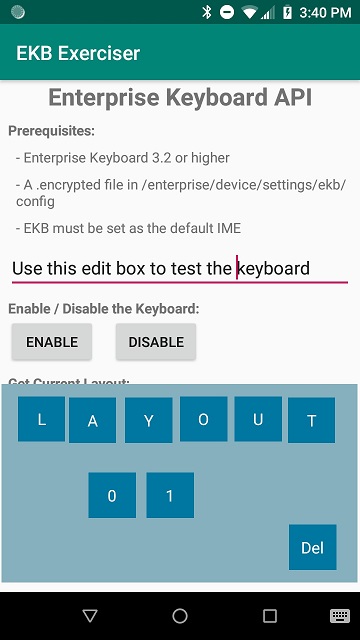
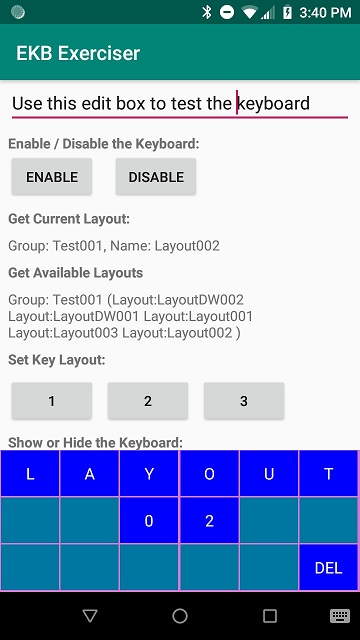
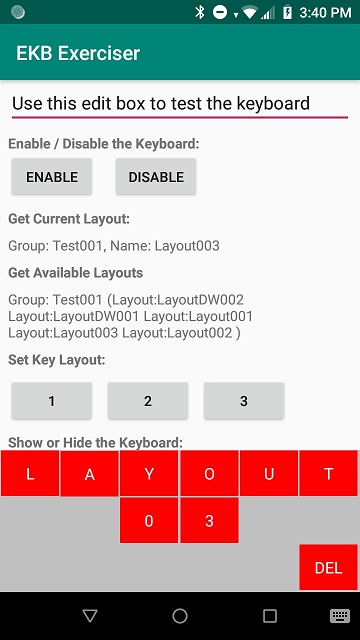
You can also see a 1-minute video of the demo application exercising the EKB API at https://youtu.be/aDheQTz9gU0
Custom Enterprise Keyboard Layouts with DataWedge
Modifying your application to make use of the EKB API may not be an option for you but you can still take advantage of custom EKB layouts through DataWedge profiles.
This works as follows:
- You define your custom keyboard layouts with the EKB designer tool as before and provision your device with the .encrypted file.
- You create a DataWedge profile and associate the profile with a custom layout.
- When DataWedge detects that the application associated with your profile comes to the foreground, the appropriate custom keyboard layout is applied.
- You can use the existing DataWedge SET_CONFIG API to modify the selected keyboard at runtime.
Demo application to switch between custom Keyboard Layouts with DataWedge
The same demo application described previously, when first launched, will automatically create a new DataWedge profile called “EKB_Exerciser” and associate that DW profile with the second activity in the demo app, “SecondActivity”.
The button at the bottom of the main UI labelled “EKB Via DataWedge Demo” will launch this second activity and you will immediately see a new custom layout file is shown, this is the custom layout selected by the “EKB_Exerciser” profile.
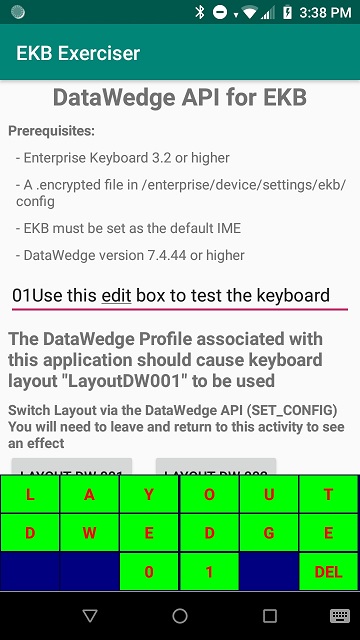
The two buttons will invoke the DataWedge SET_CONFIG API to switch between this layout and an additional custom layout file although you will need to exit and relaunch the activity for the change to have an effect:
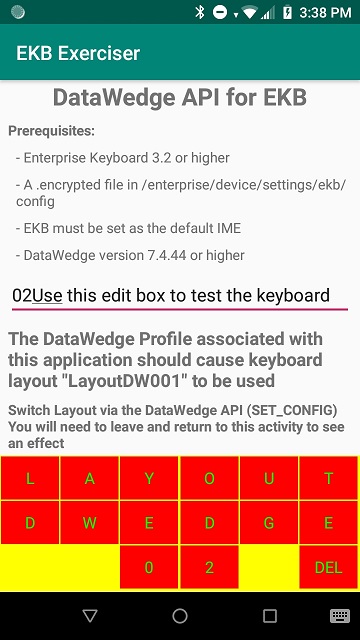
You can also see a 30 second video of the demo application showing the DataWedge capabilities at https://youtu.be/Y7BSHywJ6Gw
Conclusion
The Enterprise Keyboard Designer and custom layouts are brand new tools and capabilities and the team are continuing to add new features with each release. Hopefully this post has given an introduction to these new capabilities but be on the look out for additional enhancements in the future.